
15 Hidden ChatGPT Features Most People Still Don't Know About (2026)
I use ChatGPT daily for work, learning, and content creation — and most people are still only using 20% of it. Here are 15 features that actually change how you work.
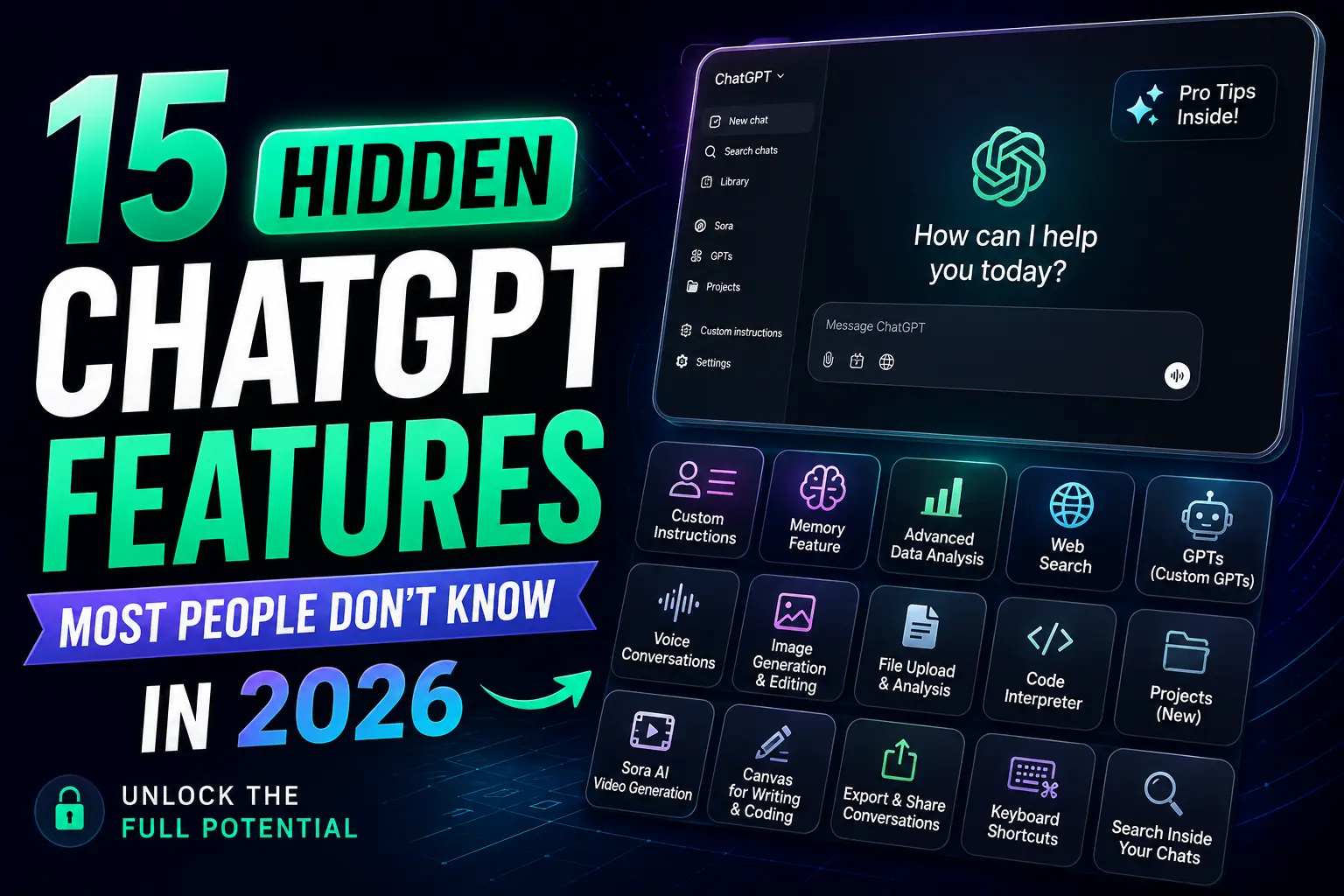
15 Hidden ChatGPT Features Most People Still Don't Know About (2026)
I've been using ChatGPT daily for work, learning, and content creation, and I recently realized that most people only use a small fraction of what it can actually do. The usual "hidden features" lists — role-playing prompts, file uploads, tone rewrites — are useful, but they've been repeated on dozens of blogs by now. So instead of rehashing that list, I dug into what's actually new and underused inside ChatGPT in 2026: the interface-level features, not just prompting tricks.
The Foundation: Prompting Tricks Worth Knowing First
Before the deeper features, a quick recap of the fundamentals — because these still trip up a lot of users:
- Assign it a role. "Act as an SEO expert" or "act as a career coach" narrows the response far more than a generic question.
- Upload files for analysis. PDFs, spreadsheets, and images can be summarized or reviewed directly.
- Ask for a style rewrite. Turn one article into a LinkedIn post, a Reddit-style post, or a beginner explainer with a single follow-up prompt.
- Request a learning roadmap. Ask for a structured, step-by-step plan for any skill.
- Debug with context. Paste the error and ask why it happened, not just how to fix it.
- Ask for prompt rewrites. If a response misses the mark, ask ChatGPT to improve your prompt before retrying.
If you already know these, skip ahead — the next section is where most "hidden features" articles stop, and where this one starts.
The Real Hidden Features of ChatGPT in 2026
1. Custom Instructions (Set Once, Apply Everywhere)
Under Settings, two boxes let you permanently tell ChatGPT who you are and how to respond — your profession, your audience, your preferred tone and format. Most people leave both blank and end up re-explaining context in every new chat. Fill them in once and every future conversation starts already knowing your context.
2. Cross-Chat Memory
ChatGPT can now retain facts across separate conversations — your name, preferences, ongoing projects, writing style. You can view, edit, or delete anything it remembers from Settings → Personalization, and correct mistakes directly by telling it what changed.
3. Projects (A Workspace, Not Just a Chat)
Projects let you group related conversations together with shared files and instructions — think of it as a folder that remembers your brand guidelines, research notes, or client details so you're not re-uploading the same documents every time.
4. Custom GPTs for Repeated Tasks
If you run the same type of task often — reviewing contracts, drafting product descriptions, tutoring in a specific subject — a Custom GPT lets you pre-load instructions, files, and behavior once, then reuse it like a dedicated mini-tool.
5. Canvas for Iterative Writing and Code
Canvas opens a side-by-side editing panel for longer writing or coding tasks. You can click into any section and ask for a targeted revision instead of regenerating the whole piece — genuinely useful for long-form drafts.
6. Live Web Browsing with Citations
For anything time-sensitive — current events, recent pricing, breaking news — ChatGPT can browse the web and cite sources directly in its answer, which also makes it easier to fact-check on the spot.
7. Advanced Data Analysis (Code Interpreter)
Upload a CSV or Excel file and ask ChatGPT to find trends, clean messy data, or build a chart. It runs Python behind the scenes, so you get visualizations and analysis without writing any code yourself.
8. Scheduled Tasks
You can set ChatGPT to run a task automatically at a set time — a daily news digest, a weekly report reminder — so it works in the background instead of only responding when you're actively chatting.
9. Temporary Chat for Privacy
Toggle Temporary Chat when you want a conversation that isn't saved to history and doesn't feed into Memory — useful for sensitive topics or half-formed ideas you're not ready to commit to your permanent record.
10. Data Controls: Opting Out of Model Training
Under Settings → Data Controls, you can turn off "Improve the model for everyone." If you paste client work or confidential information into ChatGPT, this is worth checking rather than leaving on the default.
11. Voice Mode
The mobile app supports real-time voice conversations, which works well for practicing interviews, language learning, or just thinking out loud during a walk.
12. Screenshot-to-Question (Desktop App)
The desktop app lets you screenshot anything on your screen and ask ChatGPT about it immediately — handy for quick "what does this error mean" or "explain this chart" moments without switching windows.
13. Connected Apps
Under Settings → Connected Apps, you can link Google Drive, OneDrive, and other services so ChatGPT can reference your existing documents directly instead of requiring re-uploads.
14. Archived Chats
Old conversations don't have to clutter your sidebar or get deleted — Settings → Archived Chats lets you tuck them away while keeping the history searchable later.
15. Keyboard Shortcuts
Press Ctrl+/ (or Cmd+/ on Mac) inside ChatGPT to see the full shortcut list — a small habit that adds up over hundreds of daily interactions.
Basic Use vs Power-User Use: A Quick Comparison
| Task | Basic Approach | Power-User Approach |
|---|---|---|
| Repeating context | Re-typing your background in every chat | Custom Instructions + Memory, set once |
| Client or project work | Separate, disconnected chats | Projects with shared files and instructions |
| Recurring specific task | Rewriting the same prompt each time | A saved Custom GPT for that exact task |
| Long-form writing/code | Regenerating the whole response for one fix | Canvas with targeted inline edits |
| Sensitive data privacy | Default settings left untouched | Temporary Chat + Data Controls reviewed |
Pros and Cons of Going Deeper Into ChatGPT
| Pros | Cons |
|---|---|
| Saves significant repeat-context time once set up | Initial setup (Custom Instructions, Projects) takes a few minutes most people skip |
| Canvas and Projects genuinely help long-running work | Some features (Custom GPTs, Projects) are more useful on paid plans |
| Data Controls give you real say over training data | Requires actively checking settings — nothing is enabled by default for privacy |
| Scheduled Tasks automate recurring work | Automation needs monitoring so it doesn't silently fail or go stale |
Is Claude Doing Anything Similar?
If you use more than one AI assistant, it's worth knowing Claude offers comparable customization — persistent memory, project-style organization, and its own agentic capabilities, most recently expanded with Claude Sonnet 5, now Anthropic's default model. The two aren't identical, but the direction — fewer one-off chats, more persistent, personalized workspaces — is the same across both tools.
Frequently Asked Questions
Are these hidden ChatGPT features free to use?
Most — Custom Instructions, Memory, Temporary Chat, Data Controls, Voice Mode — are available on the free plan. Projects, Custom GPTs, and higher usage limits on Canvas and Scheduled Tasks are more fully featured on paid plans.
What's the difference between Projects and Custom GPTs?
Projects are a workspace for organizing ongoing, related conversations and files around one topic (like a client or a course you're building). Custom GPTs are reusable, pre-configured mini-assistants built for one specific repeated task.
Does Memory share my data across every chat automatically?
Memory only stores what it picks up from your conversations or what you explicitly tell it to remember, and you can view, edit, or delete it anytime from Settings. Temporary Chat lets you opt out of a specific conversation entirely.
Is it safe to upload client or confidential files to ChatGPT?
Check Settings → Data Controls first and turn off "Improve the model for everyone" if you don't want that content considered for training. For genuinely sensitive material, Temporary Chat is the safer default.
What's the single feature worth setting up first?
Custom Instructions. It takes under two minutes and improves the quality of every conversation from that point forward, with no extra effort per chat.
Conclusion
The basics — role prompts, file uploads, tone rewrites — are still worth knowing if you're new to ChatGPT. But the real productivity jump in 2026 comes from the features that persist across sessions: Memory, Projects, Custom GPTs, and Canvas turn ChatGPT from a one-off Q&A tool into an actual ongoing workspace. Start with Custom Instructions today — it's the fastest win on this list.

Comments
0Be the first to leave a comment.